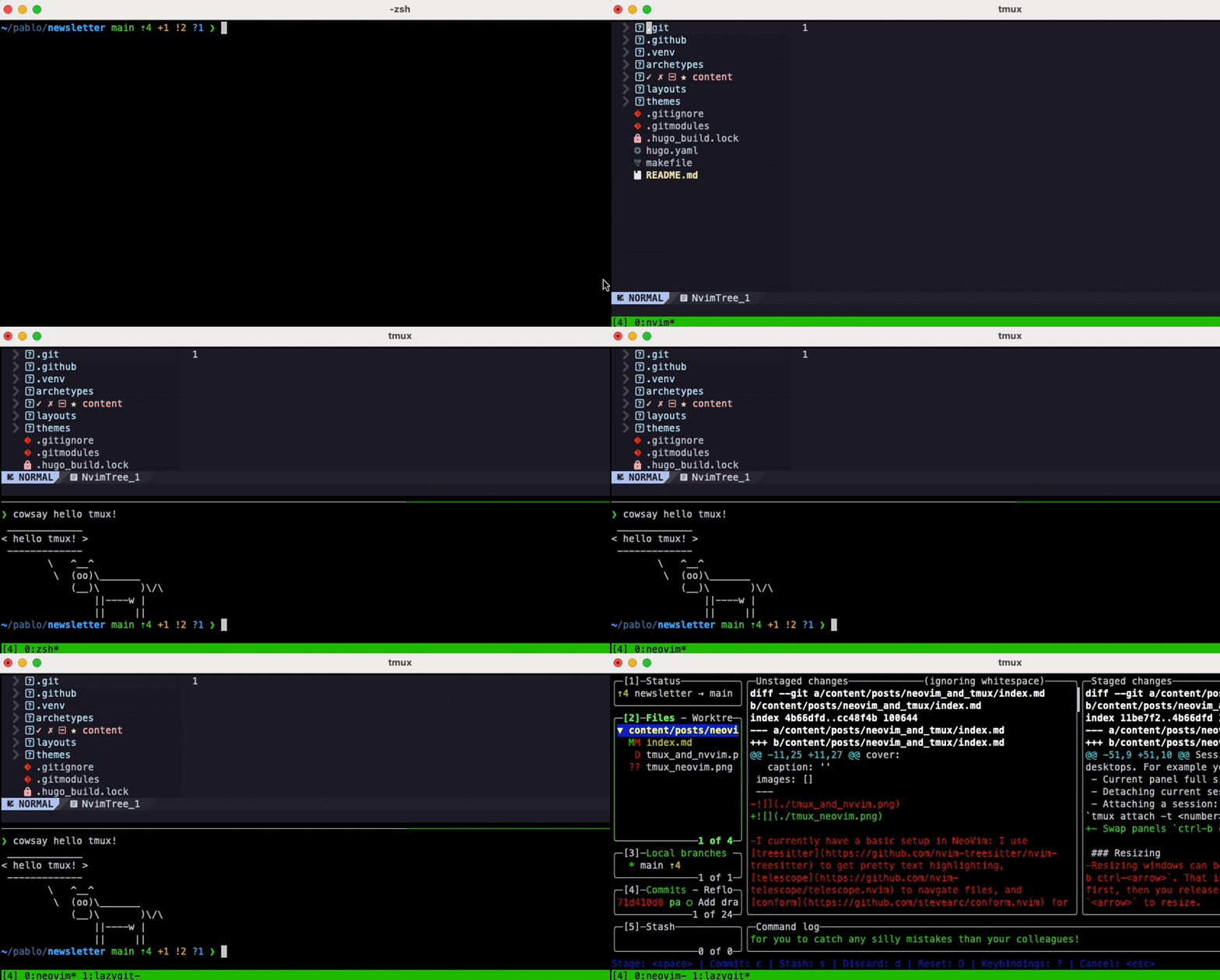
I currently have a basic setup in NeoVim: I use NvChad by default with treesitter to get pretty text highlighting, telescope to navigate files, conform for all my formatting needs and some python utilities such as pyright. This is enough to get me by.
The thing that has been annoying me the most lately is the terminal workflow in NeoVim. To start with, the terminal does not save any history across sessions, which is incredibly annoying.
The second thing that’s been annoying me lately is navigating buffers. I always end up circulating through my buffers using the tab key, which can get pretty slow if you have a few open. In a lot of cases, I just want a single key tap to go to my terminal from whatever window I’m currently at.
And finally, I find the ctrl-\ n command to detach from the current terminal very awkward to use.
For these reasons - and because I’m too lazy to properly research how to fix these things with my current setup - I have decided to learn tmux so that I can use it for my terminal needs rather than relying on NeoVim. I believe it might solve my problems. It also feels like a useful tool to know.
Using tmux
It took me around 20 minutes to research into tmux and get a basic setup going on. It is incredibly easy to use, and I believe I already have a much tidier workflow than I did before. Here are some basics on how to install it and use it. I found this blog post very useful.
Install
brew install tmux
The main keybinding in tmux is ctrl-b <some key>, which means, press control and b at the same time, release, and then press <some key>. This applies to most of the commands shown below.
Creating panels
- Starting a tmux terminal:
tmux - Creating a vertical panel:
ctrl-b % - Creating a horizontal panel:
ctrl-b " - Move to left/right/up/down panel:
ctrl-b <arrow-key> - Closing pane:
ctrl-dor typeexit
Creating Sessions
Unlike panels, which sit within the same desktop, sessions are like different desktops. For example, you use one session to have your vim and another to have your terminal and lazygit. You can view your active sessions on the green bar at the bottom left.
- Create a new session:
ctrl-b c - Move to next/previous session:
ctrl-b nandctrl-b p - Move to specific session:
ctrl-b <number>
Other
- Renaming a session:
ctrl-b , - Current panel full size toggle:
ctrl-b z - Detaching current session:
ctrl-b d - Attaching a session:
tmux lsto list sessions andtmux attach -t <number> - Swap panels
ctrl-b ctrl-o
Resizing
Resizing windows can be accomplished by pressing ctrl-b ctrl-<arrow>. That is, you press ctrl and b first, then you release, and then you hold ctrl and press <arrow> as many times as you need to resize.
I should note that mac already uses the ctrl-<arrow> keybinding for something else, so you’ll need to disable it in your keyboard shortcut settings for this to work.
Creating a config
You can create a tmux config file for customisation at ~/.tmux.conf. This is my config
# Use vim keybindings in copy mode
setw -g mode-keys vi

# Allow mouse to switch panes
set -g mouse on

# Split panes
bind | split-window -h
bind - split-window -v

# Easier pane switching
bind h select-pane -L
bind j select-pane -D
bind k select-pane -U
bind l select-pane -R

# Auto reload config
bind r source-file ~/.tmux.conf

# remap prefix from 'C-b' to 'C-a'
unbind C-b
set-option -g prefix C-a
My Workflow
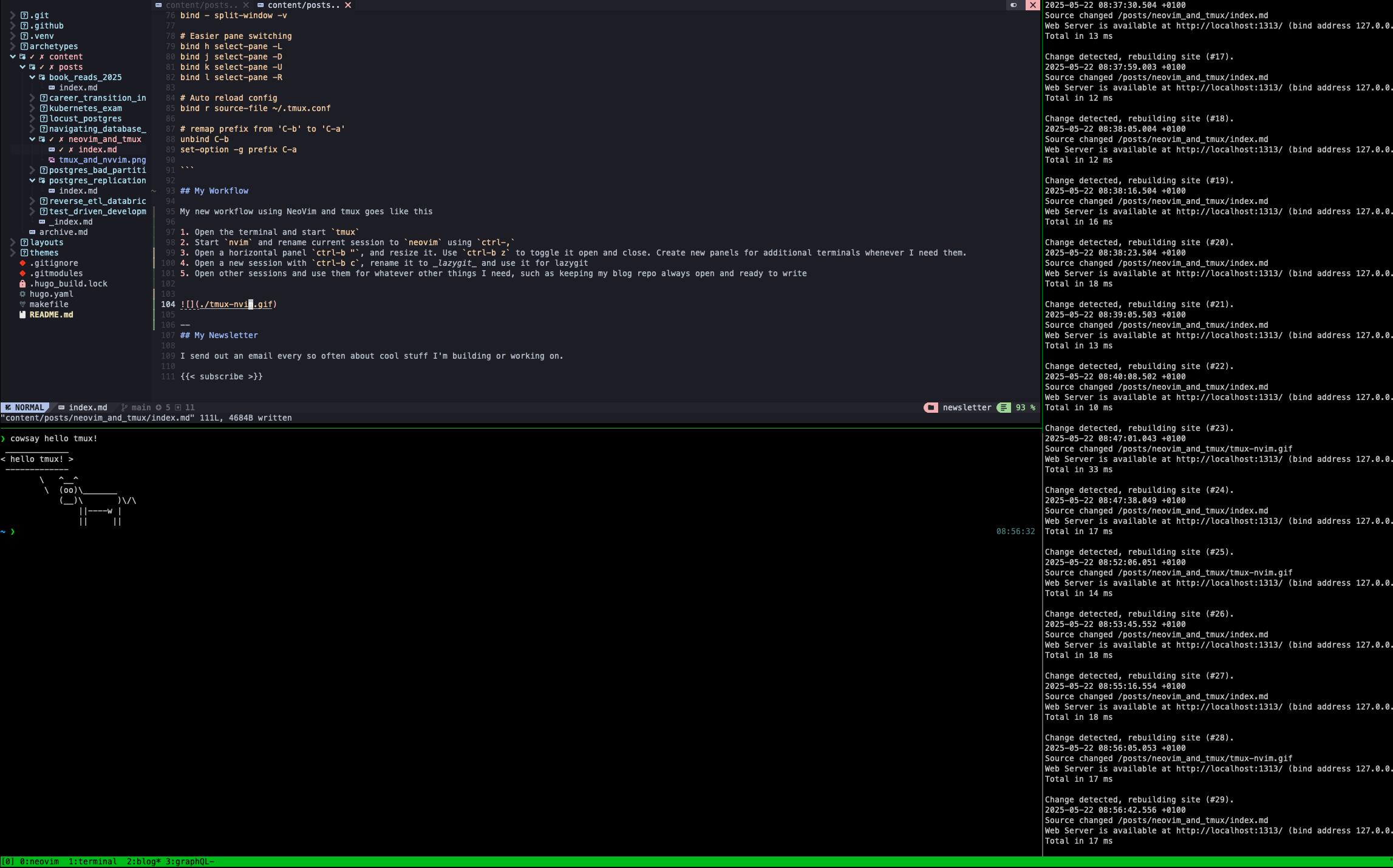
My new workflow using NeoVim and tmux goes like this
- Open the terminal and start
tmux - Start
nvimand rename current session toNeoVimusingctrl-b , - Open a horizontal panel
ctrl-b ", and resize it. Usectrl-b zto toggle it open and close. Create new panels for additional terminals whenever I need them. - Open a new session with
ctrl-b c, rename it to lazygit and use it for lazygit. Usectrl-b norctrl-b pto navigate between sessions. - Open other sessions and use them for whatever other things I need, such as having other repos open at the same time.